
01
Rosters
Employees or admins schedule transport for the days and shifts they need it.
 by
by
Employee transport management system
ShuttleMate follows every employee trip from roster to arrival. Scroll to ride along.
The complete journey
Employees or admins schedule transport for the days and shifts they need it.
Drivers, vehicles, employees and routes come together into one trip.
Monitor vehicle location and trip progress, live, from any device.
Confirm boarding and drop-off with an OTP or a QR scan.
Review trip history for any date range and download it as a PDF.
01 Product
ShuttleMate helps employees and drivers manage everything to do with company transport from their phones. Employees put in rosters and see their trips. Drivers see their stops and verify boarding.
The transport team works from a web application. They manage users, rosters, trips, vehicles and compliance, and they can watch vehicles live on a map.
Rosters, trips, OTP and QR, reports, support.
Assigned trips, employee stops, navigation, verification.
Users, rosters, trips, vehicles, live tracking, shifts, compliance.
02 Platform
Everyone on the route, and every step along it, connects through the trip.
03 Self-rostering
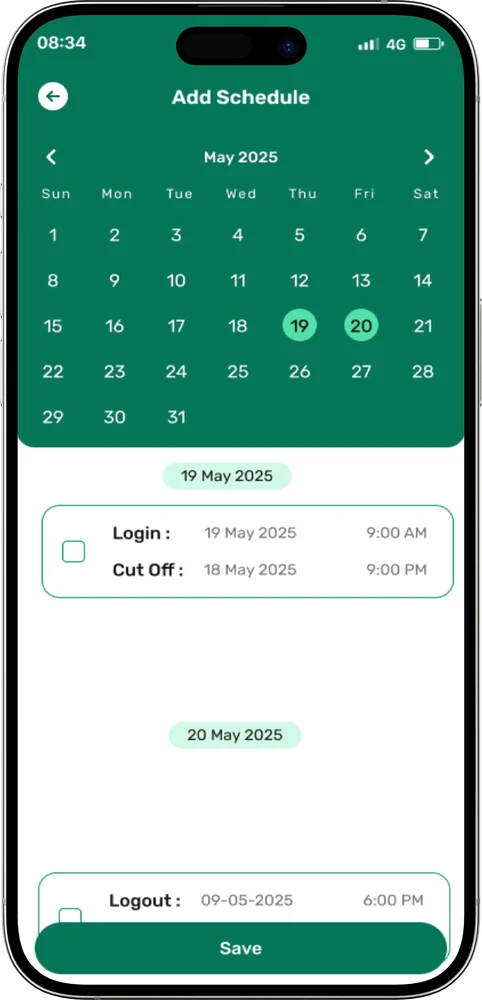
Employees add their own rosters for one day or several. Those rosters are what the transport team turns into trips.
Create a roster from the app, or have admins upload one in bulk.
Pick a single day or several days.
Add a login roster, a logout roster, or both. Rosters have to be in before the employee cut-off time.
Assigned trips show up in the app.
Check the route, call the driver and watch the vehicle.
06 For employees
Employees can manage trips, track their vehicle, verify boarding and access support from the same app.
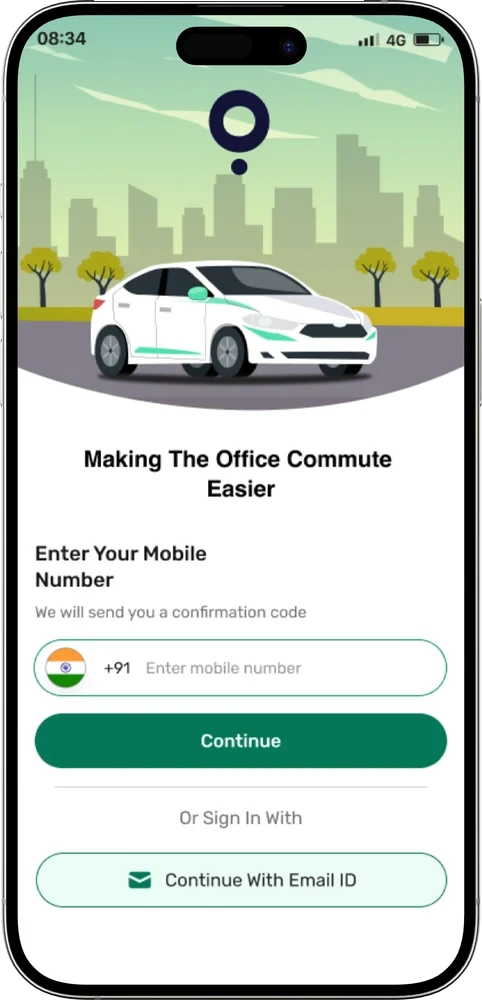
Sign in with a mobile number and OTP, or with an email ID. Profile, feedback and support are in the app too.
07 For drivers
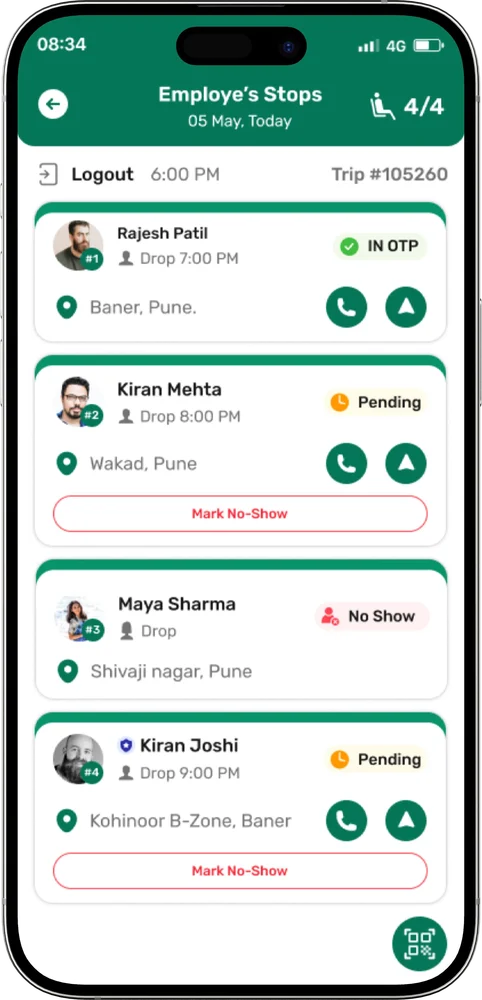
Drivers see the trips assigned to them, open each employee stop, call or navigate to it, and verify boarding.
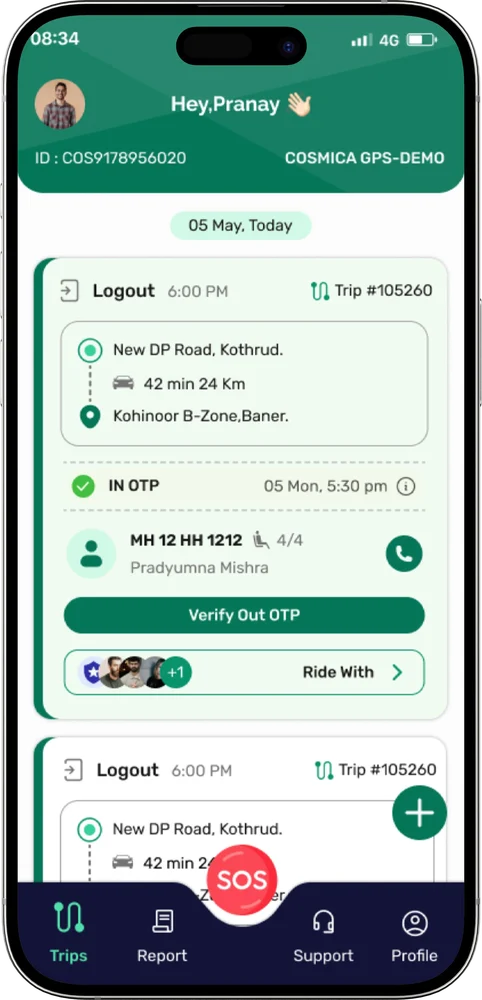
Trip type, time, trip ID, route, duration and the cab registration and model. Ongoing trips are colour-coded.
Open Ride With to see each employee, the seat count and the status of every stop.
One tap opens navigation to the employee stop.
Call the employee straight from the stop.
Mark an employee as a no-show when they are not at the stop.
Scan the employee’s QR code or type the OTP they give you.
Trip history by date range, downloadable as a PDF.
After sign-in the app asks for the permissions it needs to track the vehicle. Drivers can’t continue without them.
SOS and mark no-show are shown only if your organization has enabled them.
08 OTP and QR verification
A boarding check at the start and a deboarding check at the end, each with an OTP or a QR code.
Employee opens IN OTP and shows the code or QR.
Driver scans the QR or types the OTP. Status becomes In-OTP Verified.
The ride runs. The OUT OTP button appears once IN is verified.
Employee shows the OUT OTP or QR at the drop.
Driver verifies it. Status becomes In-Out OTP Verified.
Employees see both the QR code and the OTP in the app. Drivers can use the in-app scanner or type the number.
On a 17-seater, a QR code is attached to the vehicle. Tap IN OTP, and the employee’s scanner opens. Scan the vehicle’s code to verify boarding. Out OTP works the same way.
OTP buttons appear only if your organization has enabled them.
09 Reports
Employees and drivers can look back at their own trips in the app and save them as a PDF.
10 Help & Support
Users raise a ticket from the app and chat with the support team on it. The transport admin manages the tickets and closes them once resolved.
Enter an issue title and description, then tap Create Ticket.
Chat with the support team on the ticket to share updates or get help.
Admins can close tickets after resolution. Resolved tickets stay in history.
Example text, shown to illustrate the flow.
12 How it works
Admins add employees and guards, and keep addresses current.
Employees roster themselves, or admins upload a CSV.
Assign vehicle and driver, or drag employees into vehicle slots.
Follow the vehicle live and verify boarding and deboarding.
Download trip reports and close support tickets.
Our app
Plan your commute, view trips and stay updated on your vehicle from the ShuttleMate app.
Safety and industries
Every boarding is checked, every vehicle can be watched, and help is a tap away where your organization has enabled it.
OTP or QR confirms who got in and who got off.
Employees and admins can see the vehicle on the map.
Call the admin in an emergency, with call masking.
ShuttleMate is employee transportation management software for teams that run shift pick-ups and drops. Choose a city to see how it fits local commutes.
FAQ
Plain answers on employee transport, vehicle tracking and how ShuttleMate works.
ShuttleMate is employee transport management software from Cosmica Telematics. Employees and drivers use mobile apps, and the transport team works from a web application. Read the full overview.
It connects the steps of a journey. Employees or admins set rosters, the transport team creates trips, vehicles are tracked live, boarding is verified, and trip history is available as reports.
The driver app shares the vehicle’s location during the trip, which is why it asks for location permission, location service and Allow all the time. Admins watch vehicles on a live map and can look back at map history.
Employees add rosters from the app for one day or several, as a login roster, a logout roster or both. Admins can also upload rosters in bulk with a CSV, and rosters have to be in before the employee cut-off time.
It is a check that confirms who got in and who got off. The employee shows an IN OTP or QR code at boarding and an OUT OTP or QR at drop-off, and the driver verifies each one. Details are on the OTP and QR verification page.
Use the Request a Demo button or the inquiry form to tell us about your transport operation. You can also call +91 90 6766 7766 or email sales@cosmicagps.com.
Contact
Tell us about your transport operation and we will walk you through ShuttleMate.